Weaver-AI is a secure workspace and professional assistant
Documentation
Weaver-AI documentation
Built for legal, healthcare, finance, HR, brokers and underwriters, education and research, security, and leadership and management. Weaver-AI names the standards you work to, shows you where two sets of rules disagree, and helps your team achieve quick decisions that meet standards and regulations.
A room is opened for one decision. Whoever opens it says what is being decided, which profession’s rules apply, and whose law — the UK, the EU, the US, or more than one at once. That list is visible to every member for the life of the room, so nobody has to trust that somebody checked.
What the room keeps
The thing being decided is an object, not a heading: it holds the open questions, the actions people have taken on, and the standards the room works to. Any member can add to it. Closing the room fixes a record of what was decided and what it was checked against, and that record cannot be edited afterwards.
When two sets of rules disagree
A firm holding UK data under a US production order is subject to both at once. Weaver-AI shows both positions rather than choosing between them — and says so, because the choice belongs to the people in the room and not to an assistant.
What closing leaves behind
A closed room stays readable to every member and stops taking messages. What it holds is the decision, what it rested on, who owns what by when, and the list it was checked against — fixed at the moment of closing.
Weaver-AI cites standards by name and says where to look. It does not hold their text, and it does not rule on whether something was lawful — it identifies rules that may apply and says to check them.
Your knowledge
Answers from documents your team approved
When trusted knowledge is enabled, Weaver-AI grounds answers in the documents you added and identifies what it could not verify. Attach a file to a single message and it is read for that message only — not added to any shared corpus.
Setting up
The settings a team needs first
Everything above works out of these four. Come back to them when a room or a meeting asks for something you have not set yet.
Give Weaver-AI approved material before your team asks questions. That keeps answers grounded in your own documents instead of loose memory or web noise.
Open Knowledge and choose the right workspace.
Add a document or connect a source.
Wait for processing to finish.
Use Test retrieval to confirm Weaver-AI can find the right material.
Only add documents your team is allowed to use for answers in that workspace.
Use this as a map when you are deciding where a setting belongs.
Retention
How long Weaver-AI keeps decision rooms, meeting recordings and billing records. You choose the first two; billing is kept for seven years as a tax and audit obligation.
Store your documents, their embeddings and the answers built from them in a database you own. What your database has to provide, and how to turn it on.
Core services are subscription-based. External API usage is tracked with API credits.
Meetings
Have Weaver-AI sit in on a meeting
Weaver-AI is disclosed as an attendee and joins only when you allow it.
1
Connect a calendar
Use Google Calendar or Outlook Calendar to list meetings with join links.
2
Choose meetings
Turn on the meetings Weaver-AI should attend. Unselected meetings stay private.
3
Review notes
Open the meeting record to see attendance, notes, decisions, and follow-ups.
You can also invite your Weaver-AI meeting address directly. Unknown senders wait for review before Weaver-AI attends future meetings from them.
API access
Reach Weaver-AI from your own software
For teams that want Weaver-AI in a workflow they already run: ask a question, schedule a meeting, retrieve its minutes. API keys belong to a workspace, and successful external calls consume API credits.
Sending Weaver to a meeting and reading back its notes has its own guide: the meetings API.
Value
What it does
Request URL
Send backend requests to the Weaver-AI API endpoint.
API key
Use the secret as a Bearer token. Never place it in browser code.
tenant_id
Identifies the Weaver-AI account that owns the request.
workspace_id
Identifies the workspace tied to the API key.
Idempotency-Key
Use one unique key per logical request to avoid duplicate work.
status_url
Poll this URL when Weaver-AI returns an accepted queued request.
Keep API keys on your server. Do not embed secrets in a frontend, mobile app, or public repository.
Enterprise SSO · Preview
Let members sign in with their work email
Weaver-AI supports Microsoft Entra ID, Okta, Google Workspace, and standards-compliant OpenID Connect providers through assisted setup.
Use one approved work account and one account that should be denied.
Check
Expected result
Domain discovery
An approved work email finds the correct organization sign-in.
Provider return
The provider returns the user to Weaver-AI without a redirect error.
Existing membership
An active Weaver-AI member with the same verified email can sign in.
Access boundary
A person who is not an active member is denied access.
Recovery path
Password and MFA sign-in still work while SSO remains optional.
During preview, Weaver-AI enables SSO in test mode first and optional mode only after validation. Required-only SSO enforcement is not yet offered. Keep password and MFA access available.
Connections are scoped to the feature you turn on and can be disconnected.
Service
Access
Google sign-in
Email address, name, and profile image when you sign in with Google.
Google Calendar
Read-only calendar access for event time, title, attendees, and join links.
Microsoft sign-in
Email address, name, and tenant identity when you sign in with Microsoft.
Outlook Calendar
Read-only calendar access for event time, title, attendees, and join links.
Zoom
Meeting access only after you connect Zoom and turn on the meeting.
Support
When something does not work
Send the smallest useful report. Leave confidential content out of support email.
For meeting issues
Include the meeting name, time, provider, and what the attendance record says.
For account issues
Include the workspace name, sign-in method, and the page where you got stuck.
See it
What Weaver-AI looks like
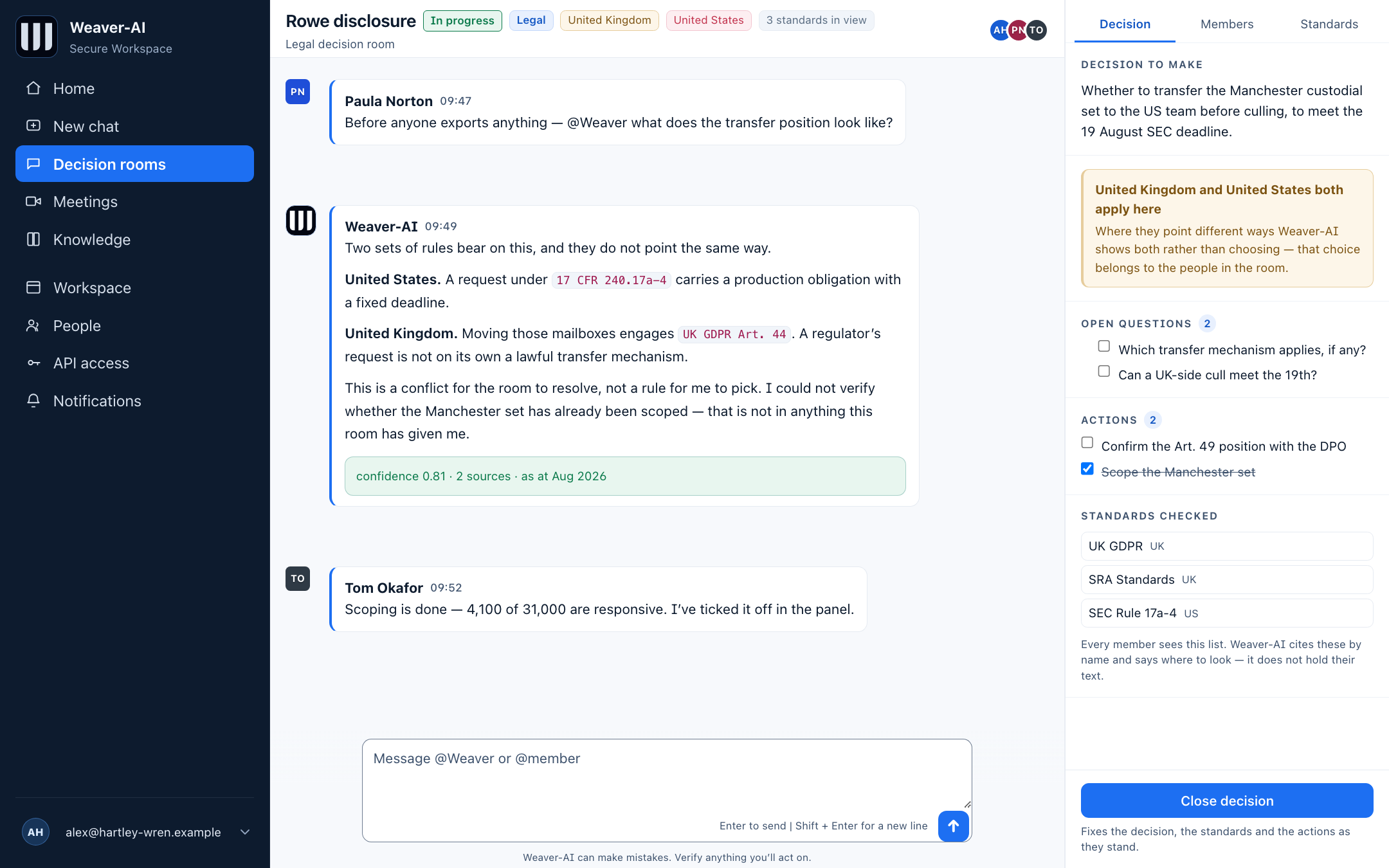
The screens the pages above describe, in the order a piece of work moves through them. The matter in them is invented — a real one would belong to somebody’s client — but every control in the pictures is one that exists.
A decision room. The rules it works to sit on the title row, where every member can see them.
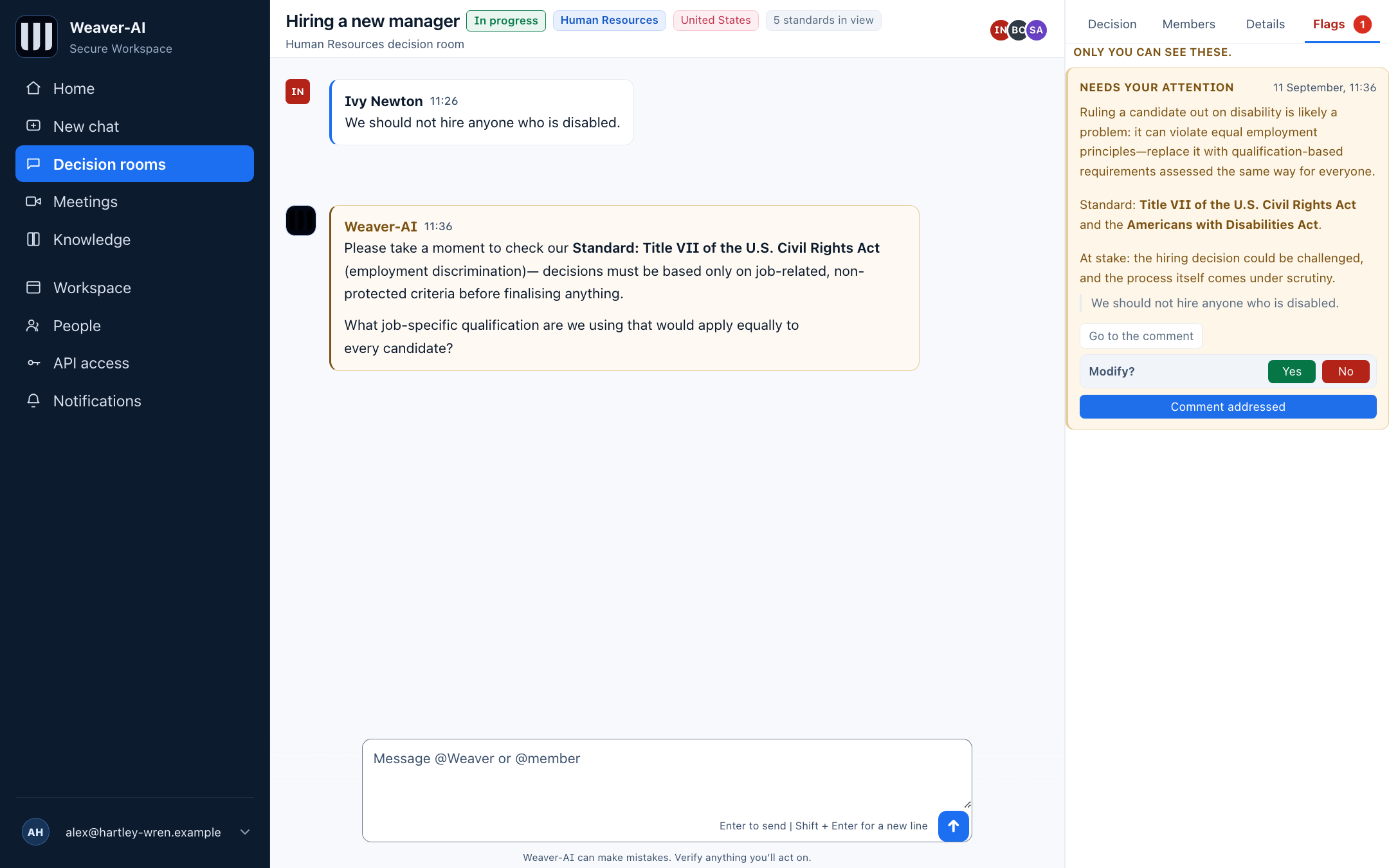
When a comment works against the standards
Weaver-AI reads the room as it fills. The person who wrote the comment hears about it privately and first; the room is asked to look at the standard, never at the person. Nothing is deleted — the record has to hold.
Weaver-AI reads every comment as it arrives. A breach is put to the author privately, and to the room only as a standard worth re-reading — never as an accusation, and never by deleting what was said.
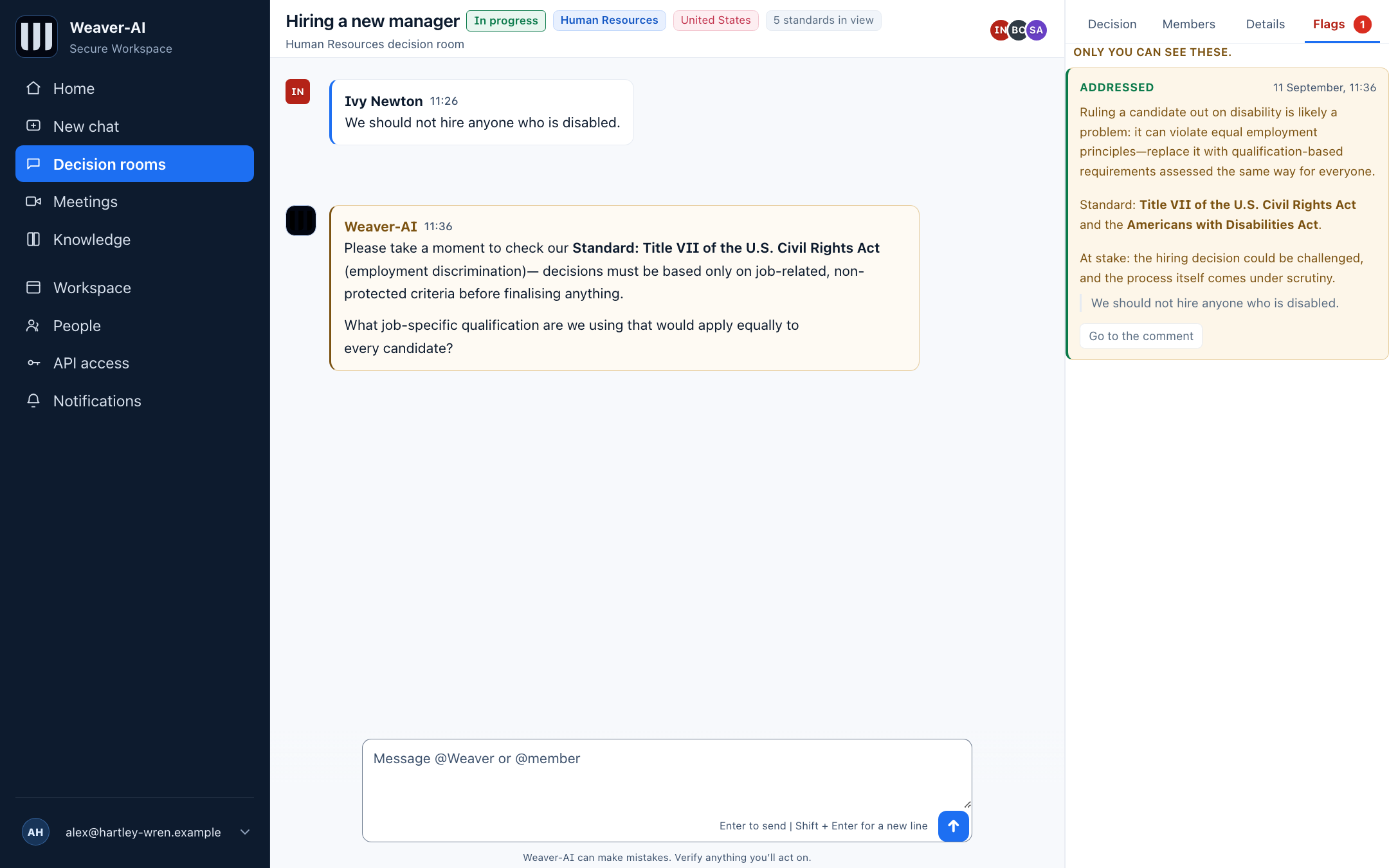
Once the author has dealt with it, the flag is marked addressed — and the original comment stays in the record exactly as written.
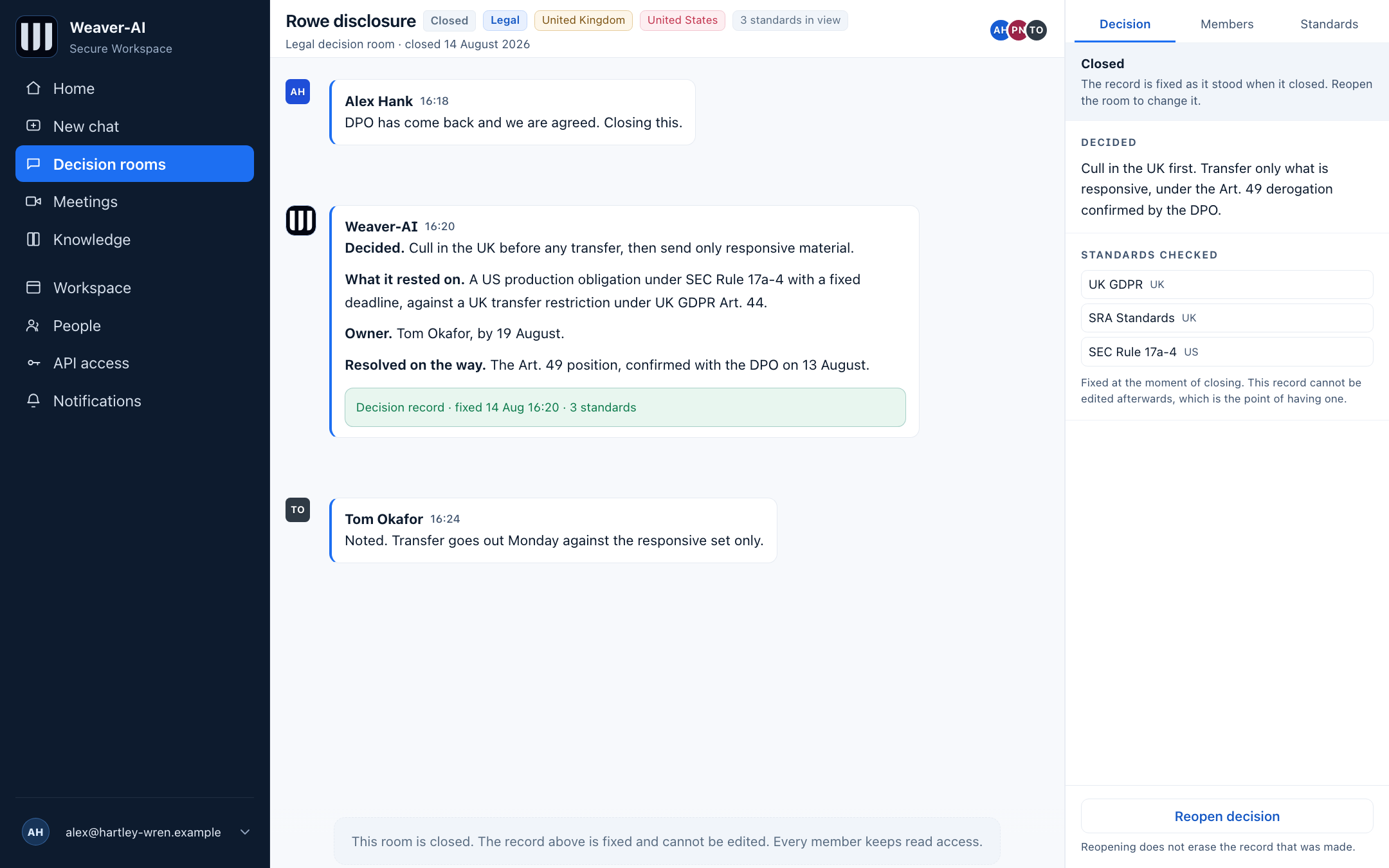
Close the decision and the record is fixed: what was decided, and what it was checked against. Nobody can edit it after.
Asking Weaver-AI on your own
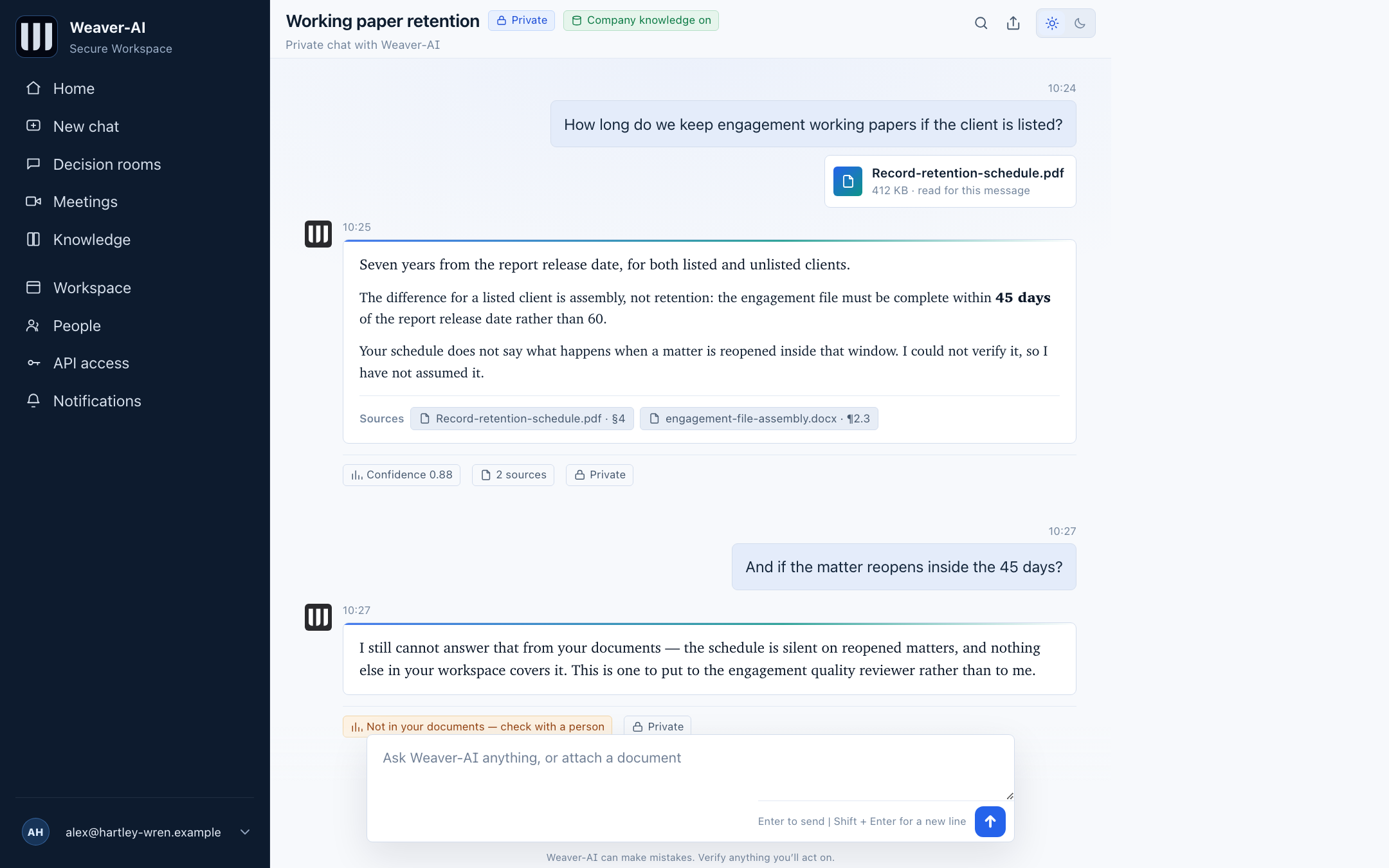
The same grounding outside a room: your documents, the sources, and what it could not verify.
Ask Weaver-AI anything. Every answer shows its sources, how confident it is, and what it could not verify.
A meeting, attended and written up
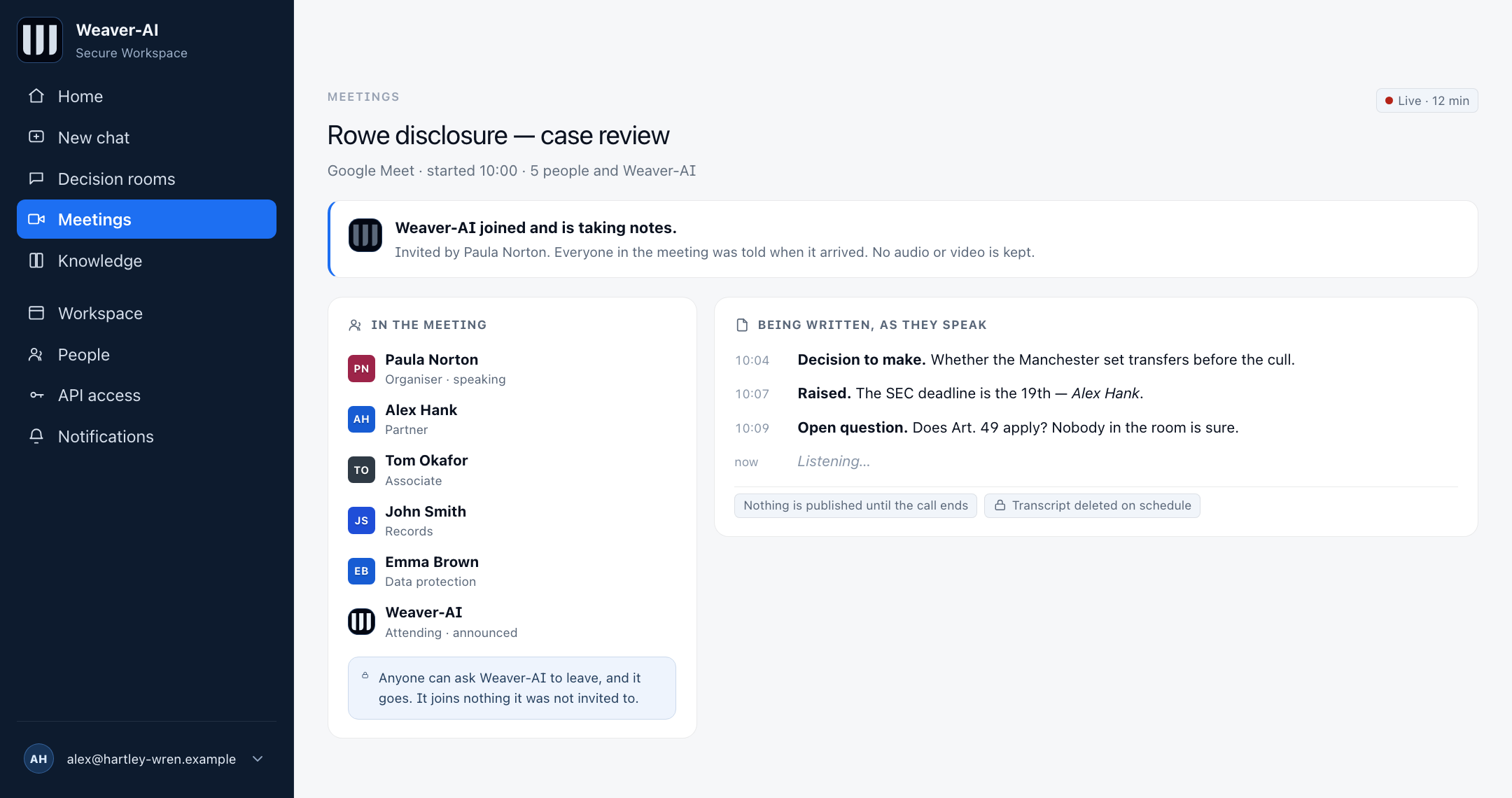
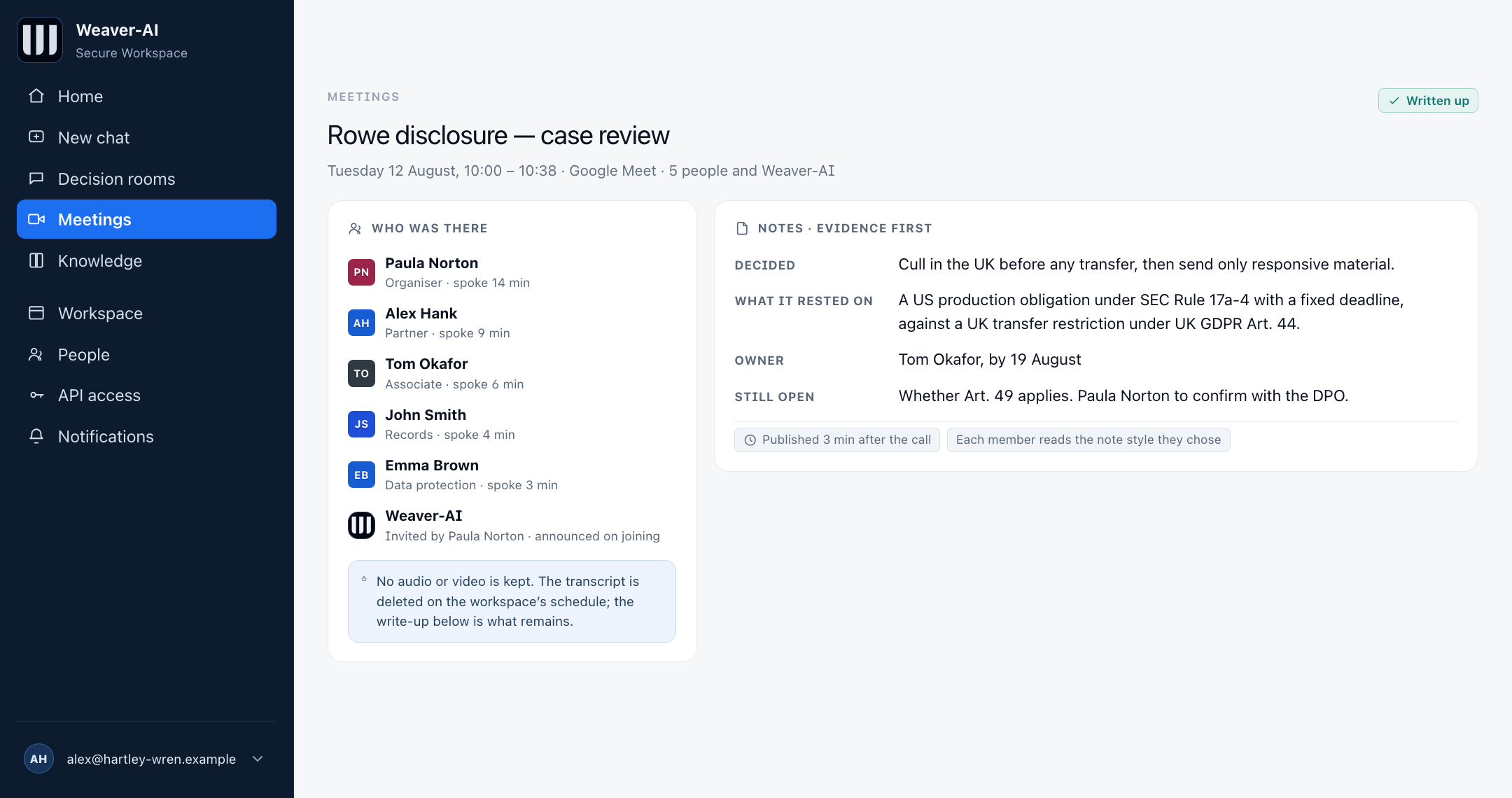
Weaver-AI appears in the meeting by name and the room is told when it arrives. Afterwards: who was there and what was decided. The two note styles below are the same meeting, read by two people who chose differently.
Weaver-AI in the meeting, not watching it from outside. It appears in the list by name, the room is told when it arrives, and anyone can ask it to leave.
Weaver-AI joins announced, never silently. The call comes back as decisions, owners and deadlines, in the note style each person chose.
Brief
Decided: cull in the UK first, transfer only responsive material.
Owner: Tom Okafor, by 14 August.
Open: Art. 49 position with the DPO.
Evidence first
Decision. Cull in the UK before any transfer.
What it rested on. A US production obligation under SEC Rule 17a-4 with a fixed deadline, and a UK transfer restriction under UK GDPR Art. 44.
Still open. Whether Art. 49 applies. Paula Norton to confirm with the DPO.
The same meeting, written two ways. Each member reads the style they chose; the meeting underneath is the same one.